· FM Aras Vardanyan · 4 min read
Chess training progress tracking on Chessodoro
How to track your progress on your coach's monthly plan on Chessodoro. Log time and notes so your coach sees your work, and learn how to use the task list, manual entries, and the built-in timer.
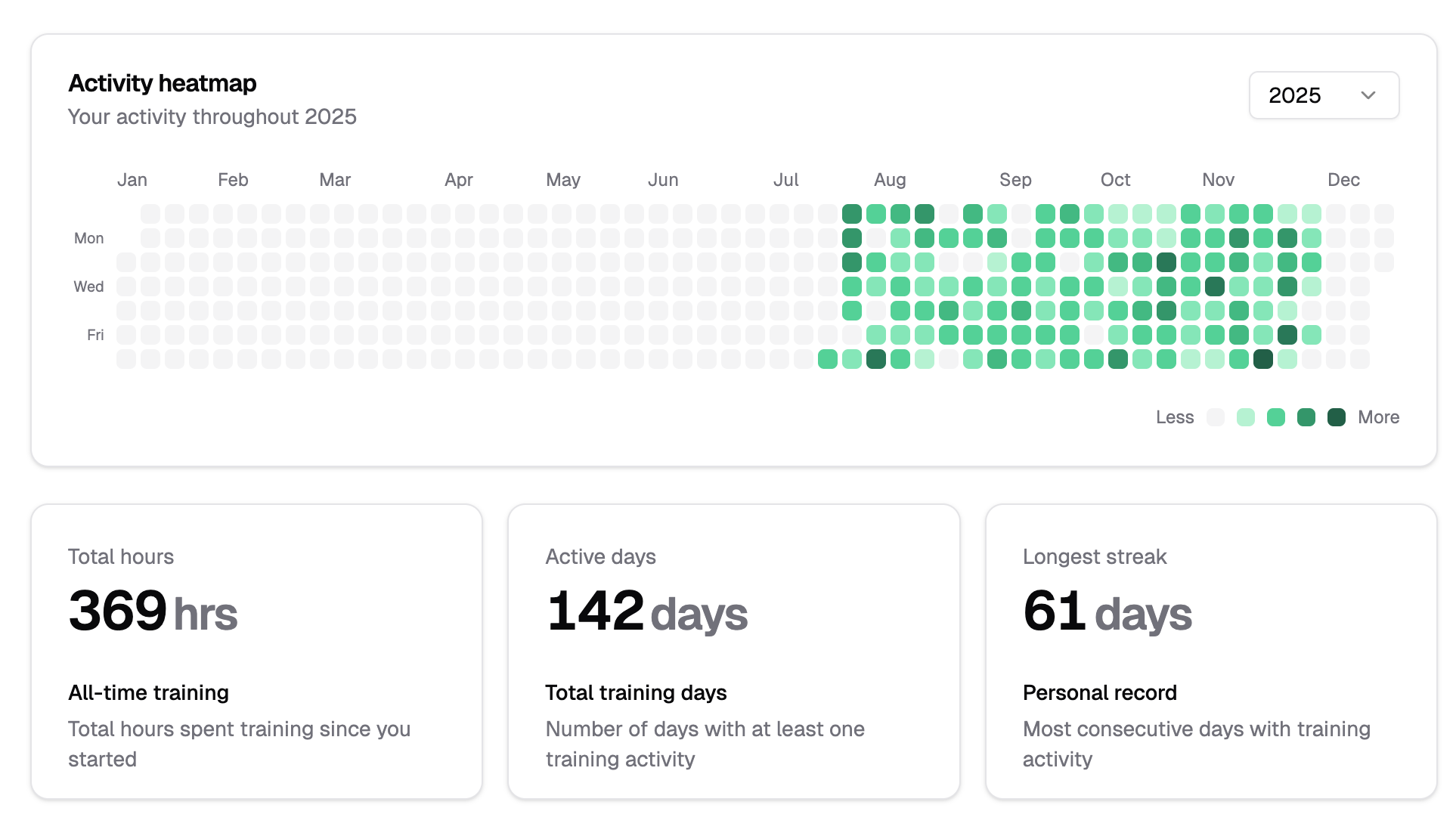
On Chessodoro, your coach gives you a monthly plan with clear tasks and focus areas. This guide shows you how to track your progress on that plan so your coach can see what you’ve done and you can stay on top of it. We’ll cover where to find your tasks, how to log time and notes, how to edit or delete entries, and how to use the built-in timer.
Why bother tracking? Because your coach sees it all. Everything you log in your dashboard is visible to them: each task you complete, how long you spent, and the notes you add. They see your progress charts too. When you finish your monthly progress check-in, they review your full body of work and notes. The more accurately you log, the better they can tailor your next plan and give you feedback that actually matches what you did.
Where to find your plan and task list
Your monthly plan is prepared by your coach and can include different types of activities: reading a book, watching a video, solving tactics, and more. Each plan is built around your current focus and goals.
Once you have your plan, head to your dashboard. In the middle of the screen (or the main area on mobile), you’ll see your task list for the current month.
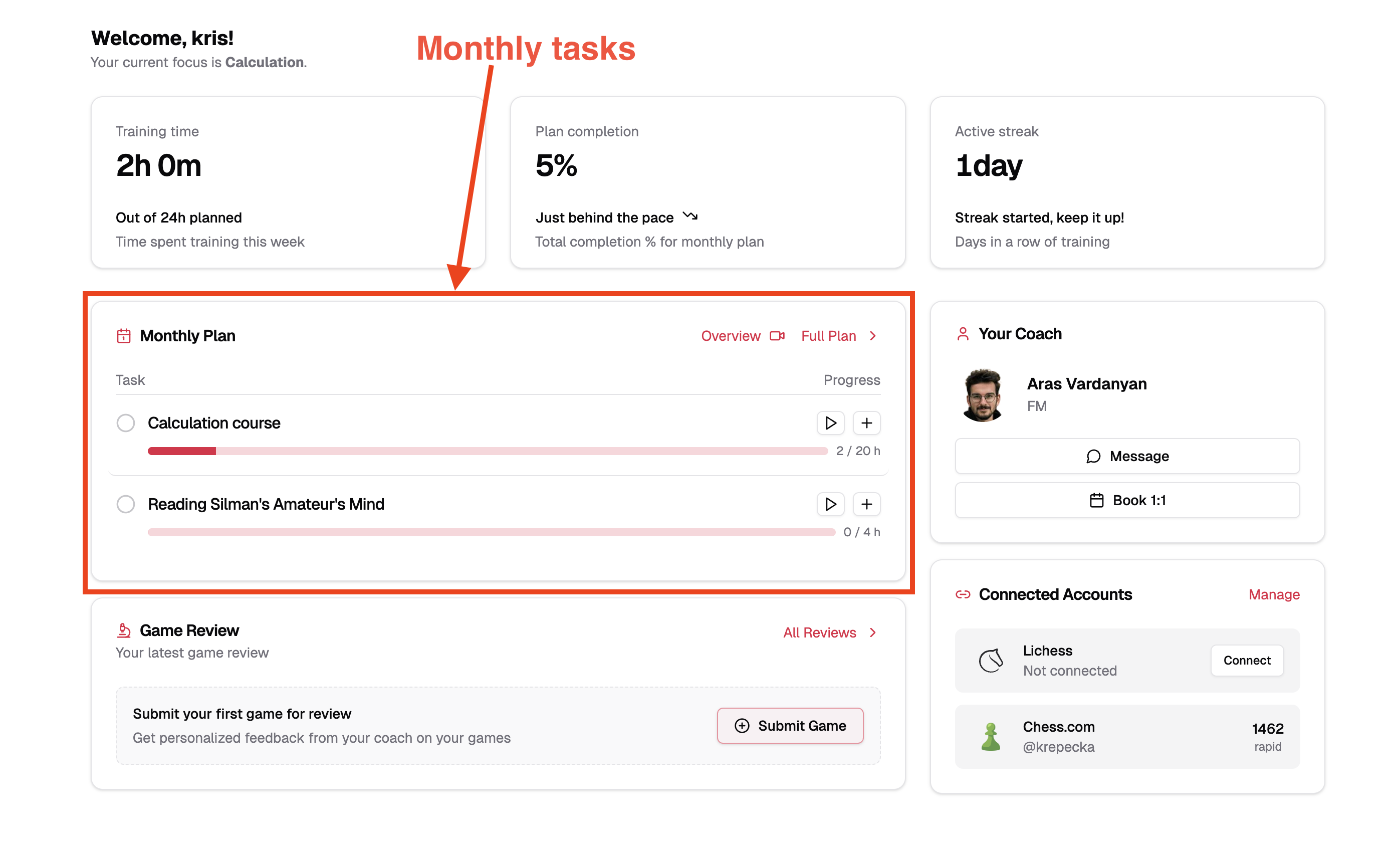
How to track progress: two options
You can log your work in two ways:
- a) Enter the time spent and add notes (manual entry).
- b) Use the interactive time tracker (start a timer, stop when you’re done).
We’ll cover both. Let’s start with manual entry.
Option A: Log time and notes manually
To record progress on a task you just worked on:
- Click or tap the task you completed (or partially completed).
- A popup opens. Enter:
- Time spent (in minutes) on the activity.
- Notes (optional), e.g. what you did, what you noticed, or questions for your coach.
- You can use the quick time buttons (+15 min, +30 min, +1 h) instead of typing the time manually.
- Save the entry.
Your coach will see this entry on their side together with your other logged work and progress charts.
Editing and deleting progress entries
If you need to fix a time or update notes for something you already logged:
- Open the task you want to edit an entry for.
- Go to the History tab. There you’ll see all your entries for that task for the current month.
- To edit: Click the pencil icon on the entry. A modal opens where you can change the time spent and the notes. Save your changes.
- To delete: Use the delete option for that entry (e.g. trash icon or “Delete” in the same row).
Option B: Using the task timer
If you prefer to track time while you work, you can start the built-in timer on a task and stop it when you’re finished. You can add notes when you stop the timer.
- To start: Click the timer button on the task (e.g. “Start” or play icon). The timer begins.
- To stop: Click the stop button when you’re done. Enter your notes if you want, then save.
This is useful when you’re doing a single block of work (e.g. 30 minutes of tactics) and don’t want to remember to log it later.
Summary
- Your monthly plan lives on your dashboard; the task list is in the middle of the screen (or main area on mobile).
- You can log progress by (A) entering time and notes in the task popup (with optional +15 / +30 / +1 h shortcuts), or (B) using the task timer and adding notes when you stop.
- To edit or delete an entry, open the task → History tab → pencil to edit or delete the entry.
- Everything you log is visible to your coach and feeds into your progress charts and your monthly progress check-in, so they can review your body of work and adjust your next plan.
If you don’t have a Chessodoro plan yet and want a personalized monthly plan and progress tracking with a real coach, explore our coaches and plans to find one that fits your level and goals.